

How to embed a video file in a custom popup
Play a video file, such as MP4 or WebM, in a custom popup with the Insert iframe button. Use one video for every feature or a different video for each one.
Paste the address of a video file, such as an .mp4 or .webm file, into Insert iframe, and the popup plays it in a video player. MangoMap does not host the file: it must be at a public https:// address, such as your own web server.
See it on an example map
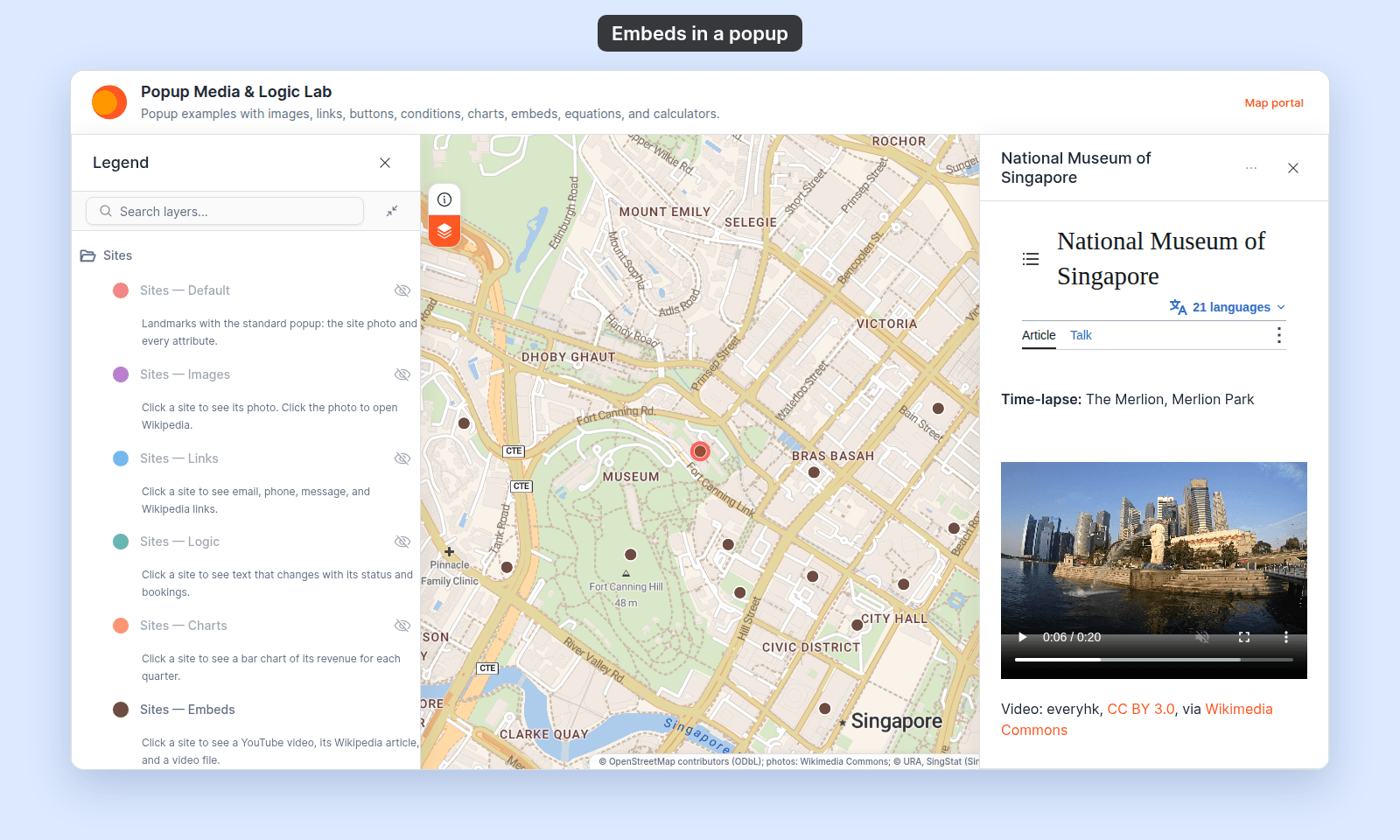
Open the Popup Media & Logic Lab. In the legend, turn on Sites — Embeds and turn off Sites — Default. Click a site. Its popup shows a video player with the Merlion time-lapse video file.
Before you start
- The popup type must be
Custom. See How to write a custom popup template. - You need a public
https://address whose path ends in.mp4,.webm,.m4v,.mov,.ogv, or.ogg. Capital letters are fine. A query after the file name, such as?token=abc, does not count. - The viewer’s browser must be able to play the file’s format. MP4 files are the safest choice. See If the video doesn’t play.
- For a YouTube video, use
Insert YouTube videoinstead. See How to embed a YouTube video in a custom popup.
Insert the video
- In the Custom popup editor, place the cursor where you want the video.
- Click
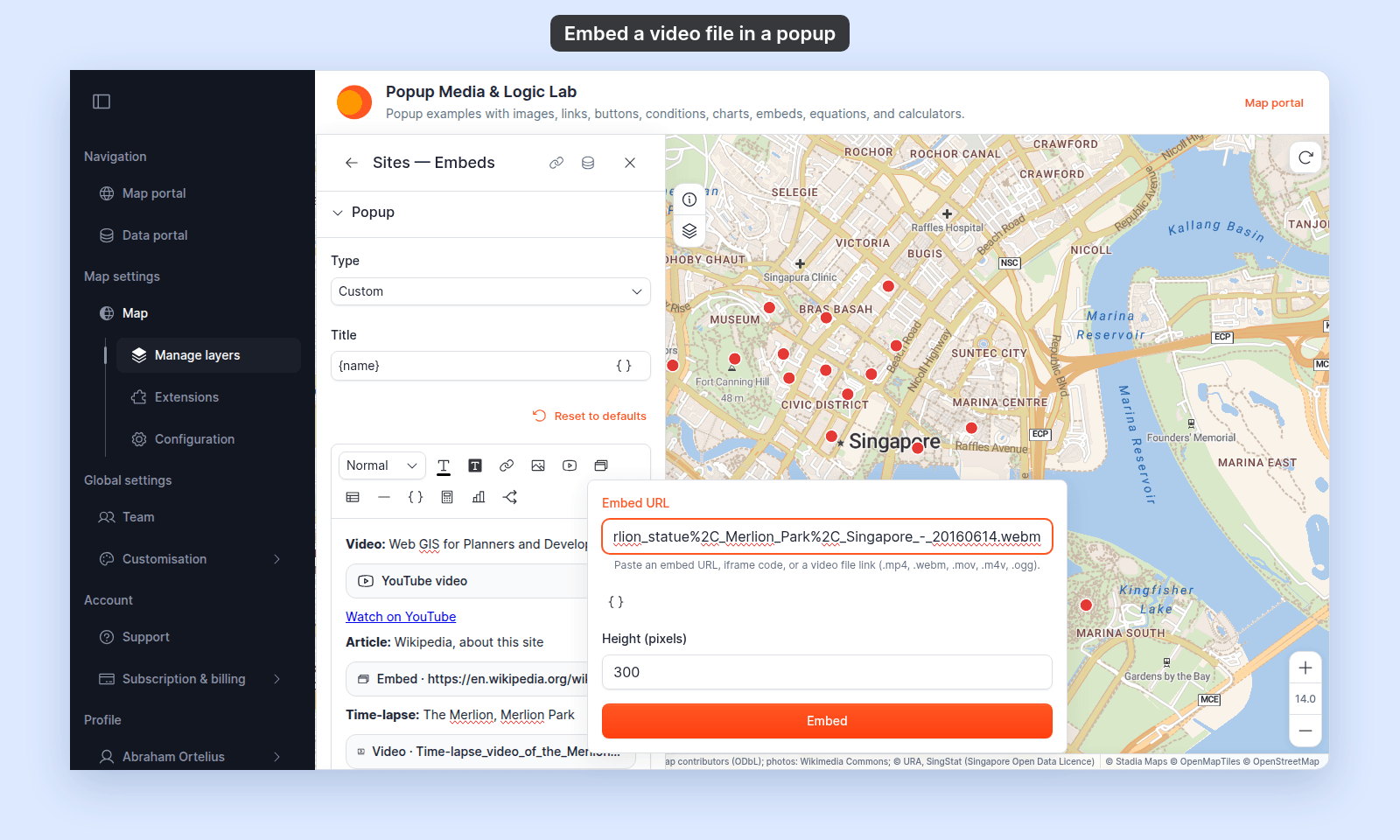
Insert iframein the toolbar. - Paste the video file’s address into
Embed URL. - Set
Height (pixels)if you want the player taller or shorter. The default is 300. - Press
Enteror clickEmbed.
The editor shows the video as a chip with the file name, such as Video · merlion.webm. Hover over the chip to see the full address. The player shows only in the popup on the map. There, it fills the popup’s width, shows its controls, and does not start on its own.
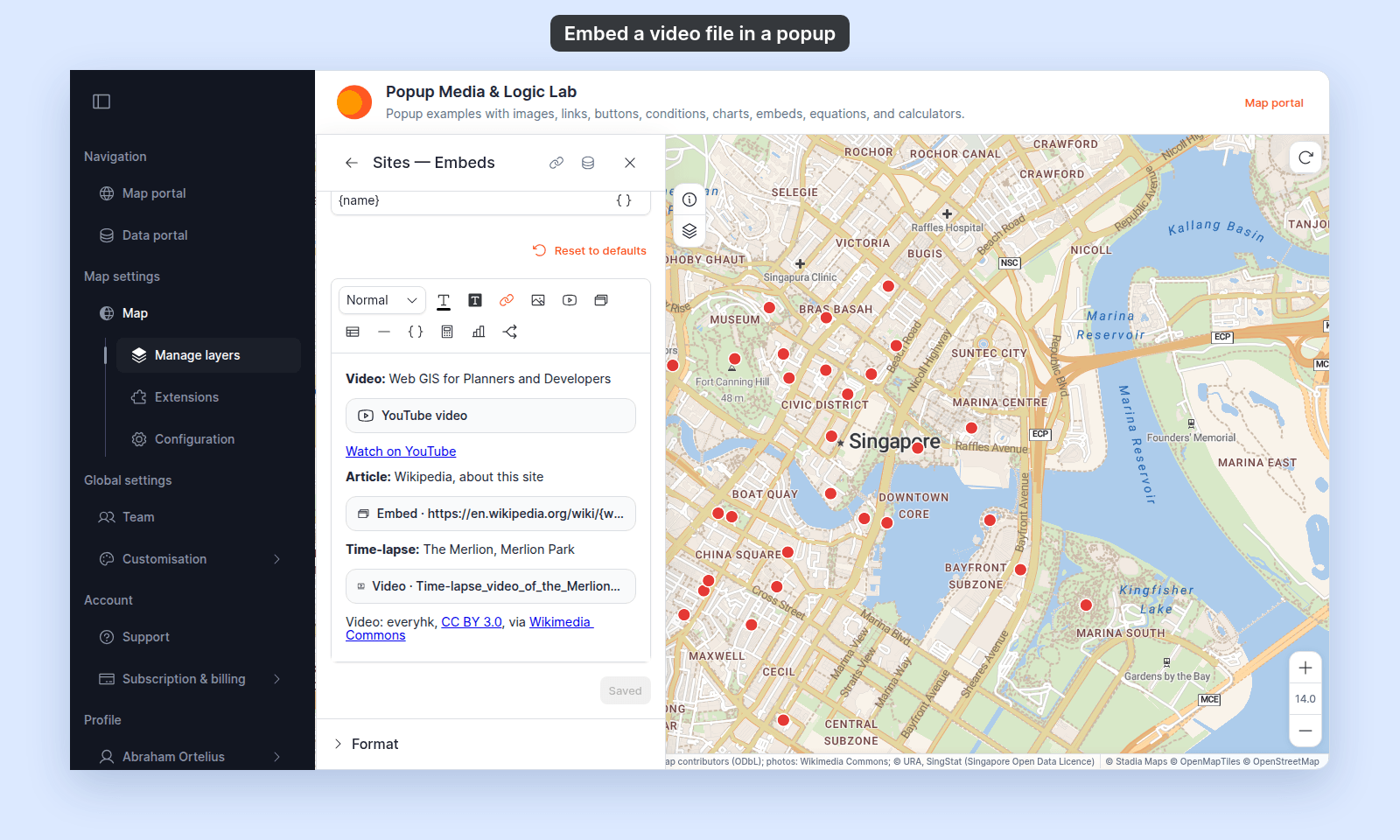
To change the address or the height later, click the chip, then click Edit embed. See Edit an embed. If you change the address to a web page, the video becomes an iframe.
Use the same video for every feature
Paste a fixed address. The same video plays in every feature’s popup.
Use a different video per feature
Put a {field_name} variable in the address. Click Insert simple variable in the dialog to add one at the cursor, or type it. For example, with an attribute slug:
https://example.com/videos/{slug}.mp4The popup fills in each feature’s value. If the attribute is empty for a feature, that feature’s popup leaves the player out.
If an attribute holds the whole file name
The attribute can hold the file name with its extension, such as merlion.mov:
https://example.com/videos/{file_name}The editor cannot tell the file type from this address, so it shows an iframe chip with the address. When the popup opens, MangoMap checks the filled-in address. If it ends in a video file type, the popup plays it in a video player, at the same height. If not, the popup shows it as a web page. So one layer can mix videos and web pages.
Check the video
Save the popup, then click a feature on the map and play the video:
If the video doesn’t play
- The address starts with
http://. The dialog refuses it withUse an HTTPS embed URL from an external site. Use thehttps://address. - The address has no
https://at the start. The dialog refuses it withEnter a full web address that starts with https://. Type the full address. - The address does not end in a video file type. The dialog embeds it as a web page, not a player. Use the address of the file itself.
- The address is a streaming playlist. The dialog refuses an
.m3u8or.mpdaddress withStreaming playlists (.m3u8, .mpd) cannot play here. Use the embed link from your video host (for example YouTube or Vimeo).Use the host’s embed link withInsert iframe, orInsert YouTube videofor YouTube. - The browser cannot play the file’s format. The player shows, but the video does not play. Each browser plays a different set of formats. For example, Safari does not play
.oggfiles, and Chrome plays a.movfile only when its video is H.264. MangoMap does not convert files. For the widest support, use an MP4 file with H.264 video. - The file host blocks other sites. Some hosts refuse to serve files to other websites. Open the popup on the map to test the address before you rely on it.
Save the popup
After inserting the video, click Save Changes at the bottom right of the editor.
Related
- How to embed an iframe in a custom popup — the same dialog, and the address rules
- How to embed a YouTube video in a custom popup
- How to insert attribute values into a custom popup
- Popup tab controls