---
title: "How to invite a client owner"
description: "Send a client owner an email invitation to set a password and sign in. You keep partner control, can cancel a pending invitation, and inviting is optional."
sidebar:
label: "Invite a client owner"
---
Send the client owner an invitation to set a password and sign in. You keep partner-level control and can revoke access at any time. Inviting is optional. You can run the account yourself.
## Before you start
- The account must exist (see [how to create a client account](/partner/create-a-client-account)).
- The client owner email on the account must be correct. To change it, use [how to transfer a client account to its owner](/partner/transfer-a-client-account-to-its-owner).
## Send an invitation
{/* video-content: id=invite-a-client-owner
Start: The fully loaded Client accounts page.
Show:
1. Click a client's company name to open its account details.
2. Click Send invitation in the Invite client owner card.
3. Show the Sent button and point at Cancel invitation.
End: Hold on the card with the invitation sent.
Exclude: Authentication, loading screens, fixture setup, the invitation
email, cancelling the invitation, and the client owner's sign-in.
*/}
{/* walkthrough: id=invite-a-client-owner */}
{/* /walkthrough */}
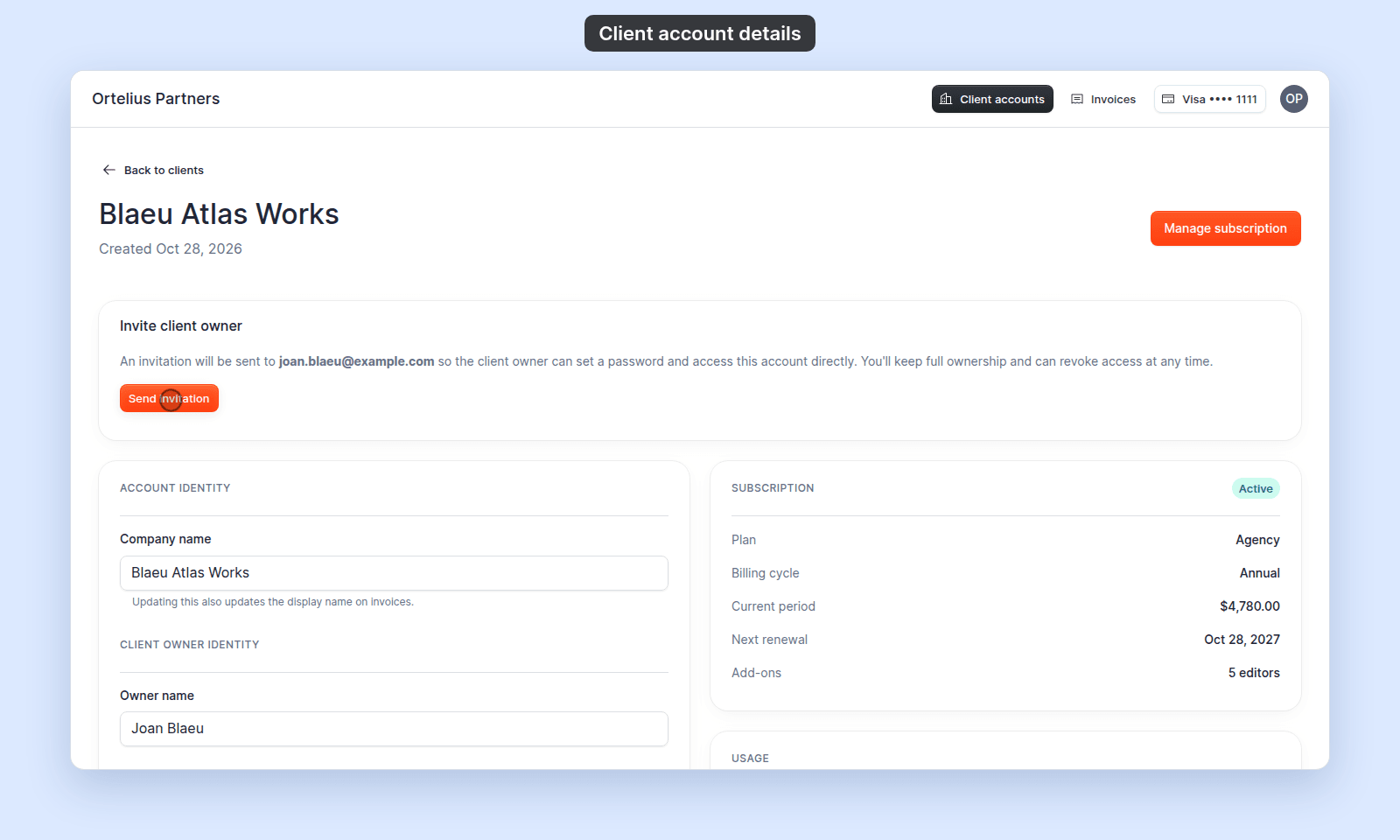 1. Open the account from the `Client accounts` page (click the company name, or `Client details` in the row menu).
2. In the `Invite client owner` card, click `Send invitation`.
3. The button changes to `Sent`. The client owner now has an email with a link to set their password.
## What your client receives
The client owner gets an email inviting them to set a password and access the account. Once they set a password and sign in, they become active and the `Invite client owner` card disappears. In the `Client accounts` list, a key icon shows next to their email (instead of a lock) from the moment you send the invitation.
## Cancel a pending invitation
While an invitation is `Sent` but not yet accepted, click `Cancel invitation` in the same card to revoke it. You can send a new invitation later.
## Related
- [How the partner portal works](/partner/concepts-partner-portal)
- [How to transfer a client account to its owner](/partner/transfer-a-client-account-to-its-owner)
- [How to create a client account](/partner/create-a-client-account)